How to Use the OpenBot Marketplace: Agents, Skills, and Plugins
Browse the OpenBot Marketplace, install agents, plugins, and skills, and submit your own agent for review.
A useful agent takes more than a name. It needs instructions for the work it does, and it may have skills or routines too. The OpenBot Marketplace lets you add an agent someone else has shared, find plugins and skills for your own agents, or submit an agent you have built.
Browse the Marketplace
In the desktop app, click the puzzle-piece icon at the top of OpenBot’s sidebar. The Marketplace has three tabs: Agents, Plugins, and Skills. You can browse the listings by category or search for a creator or item by name. Open a listing to see what it does before adding it.
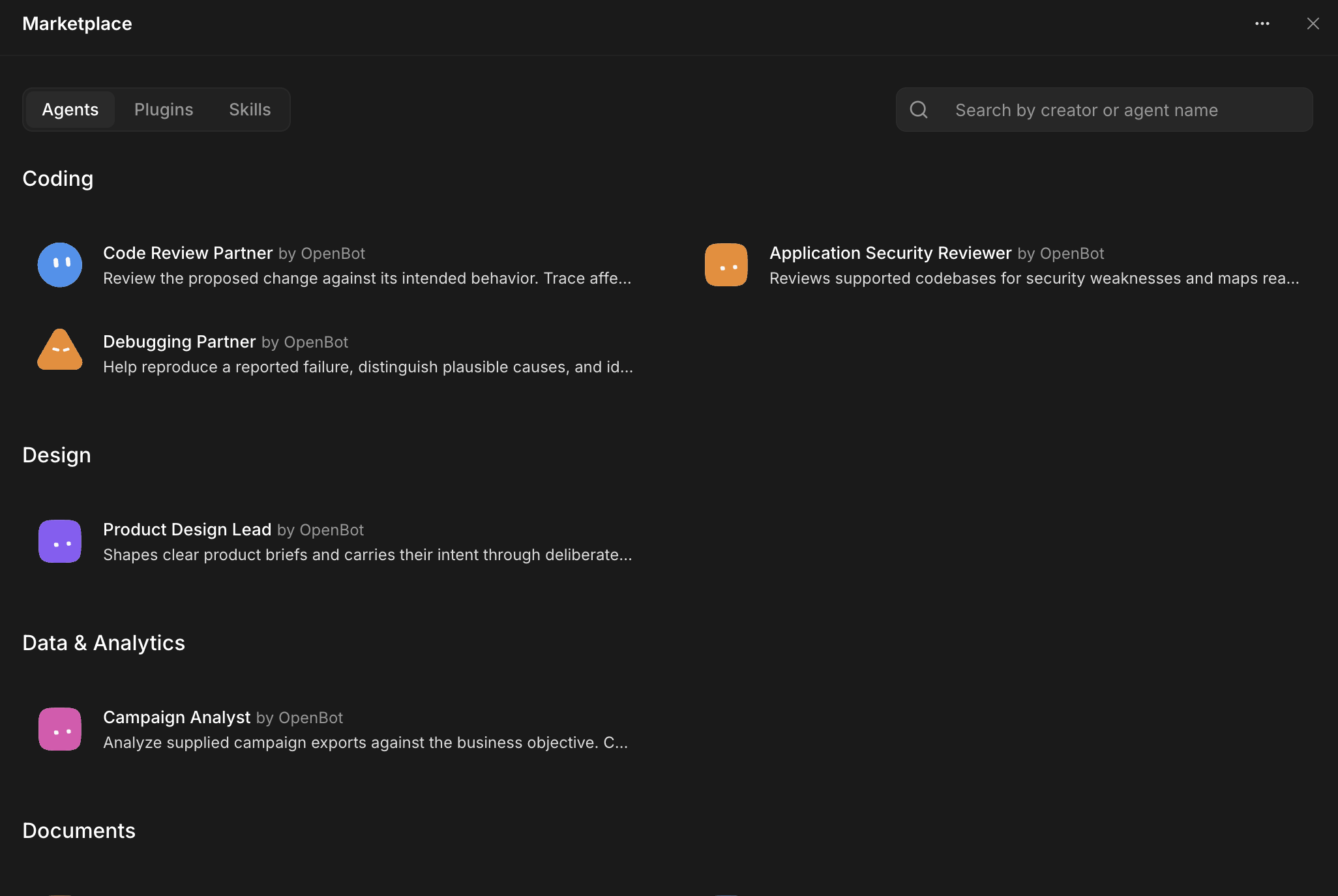
Add an Agent from the Marketplace
In the Agents tab, open a listing and read its instructions. They tell you what the agent is meant to do and how it approaches the work. A listing may also include skills (playbooks for particular tasks) and routines (tasks the agent can run on a schedule).
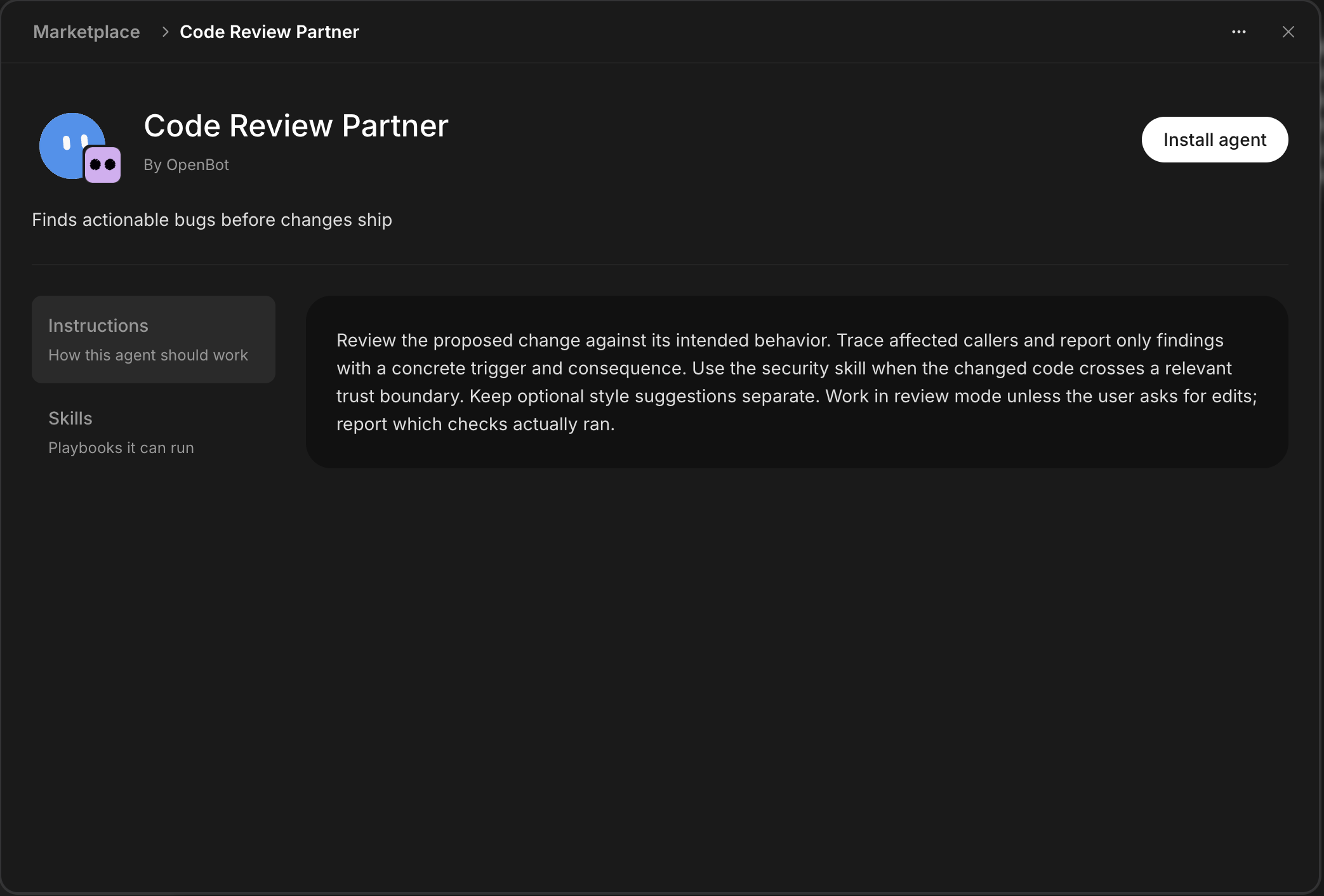
If the setup fits, select Install agent. OpenBot adds a copy of the agent setup, not the creator’s conversations, memories, model settings, or workspace files. Choose the provider you want to use and adjust the instructions for your project. Check its routines too: ones marked active in the shared setup stay active when installed.
Add a Plugin or Skill to an Agent
A plugin connects an agent to an app or service. Open a plugin listing to see what it can do and the example tasks it supports. Choose an agent, then select Install plugin. If the plugin includes skills, those are added to the agent you chose. The app connection itself is saved on the computer running OpenBot. Some plugins also need you to sign in or provide a credential before they can work.
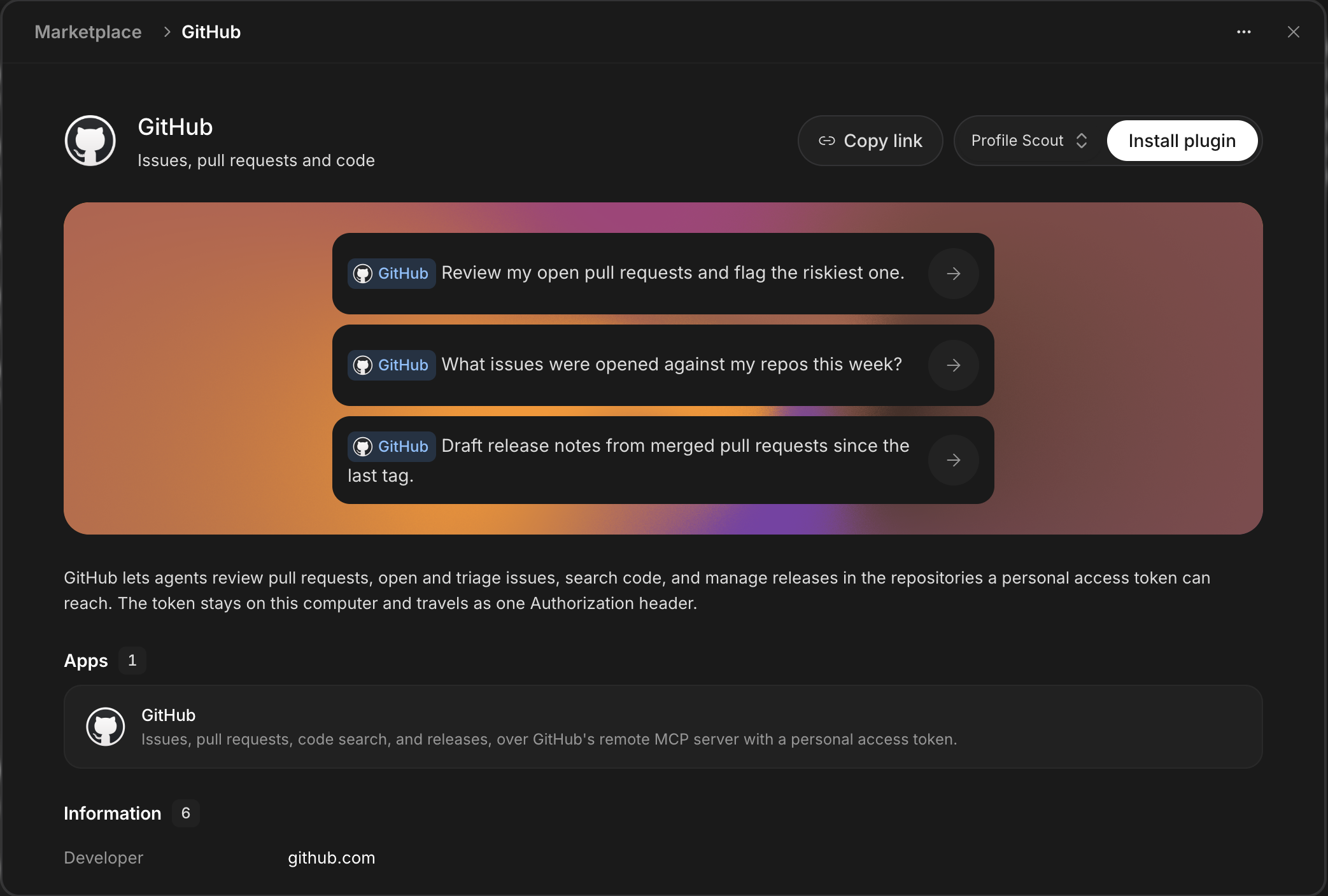
A skill is a set of instructions for a particular kind of task. In the Skills tab, open a listing, choose an agent, and select Install skill. A skill guides how the agent works; a plugin gives it a connection to another service.
Check what access a plugin needs before installing it. The GitHub plugin, for example, can work with the repositories your personal access token can reach. Its token is saved on your computer, but it is sent to GitHub’s remote service with requests. Give it only the access you are comfortable sharing.
Submit Your Agent to the Marketplace
To share an agent, open the three-dot menu in the Marketplace and select Add agent. Before submitting, check the agent’s full instructions, skills, and routines in its settings. Remove any credentials or private details from that setup, and make sure its routines are suitable for someone else to run.
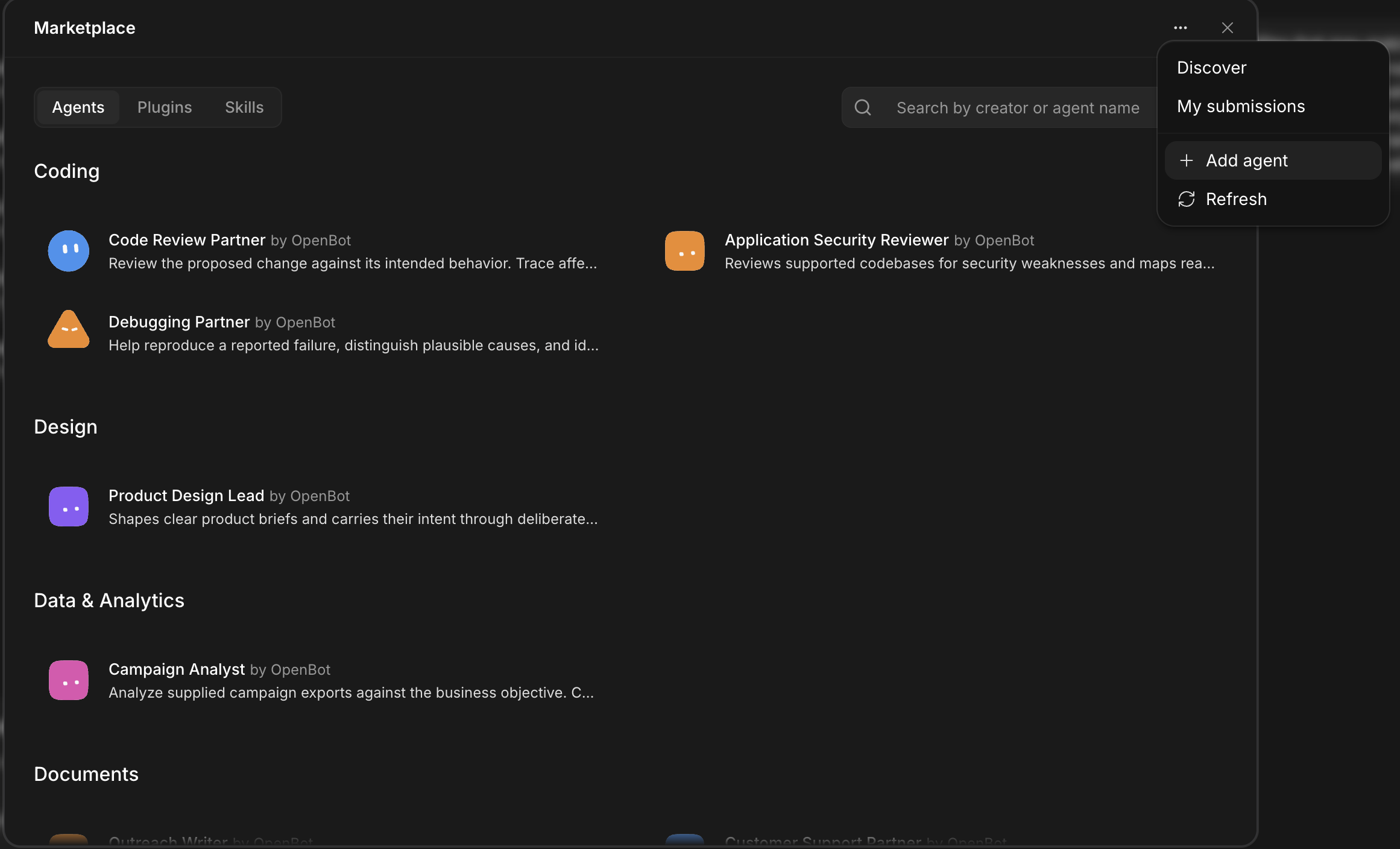
Choose the local agent you want to share, review its name and description, and pick a category. The submission preview shows a summary and counts of included skills and routines; it does not show their full contents. Select Submit for review when you are ready. Conversations, memories, model settings, and workspace files are not part of the submitted template.
You can follow the review in My submissions. Once an agent is approved, other people can find and install it from the Marketplace. If you need to revise a submission, you can send a new version.